A friendly, beginner-ready guide for 2026
Be honest: how much of your workday goes to managing work instead of actually doing it? Sorting emails, rescheduling meetings, typing up notes from calls. It adds up fast, and most of us never notice.
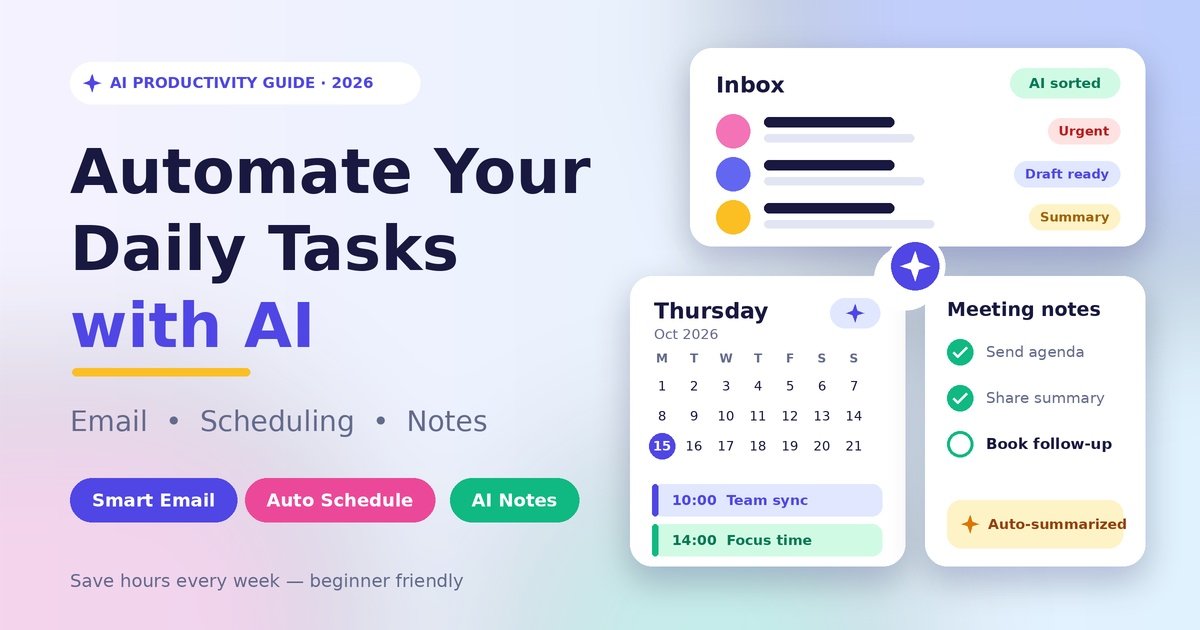
That is exactly where AI task automation helps. AI daily task automation is not about replacing you. It is about handing the repetitive parts of your day to a smart tool so you can focus on work that needs your brain. In this guide, I will show you how to automate email, scheduling, and notes step by step, even if you have never used an automation tool before.
What Is AI Task Automation?
AI task automation means letting software that understands language handle routine work for you. Older tools followed rigid rules, like “move emails from this sender to that folder.” Modern AI productivity tools can read, summarize, draft, and make simple decisions. Think of them as an AI personal assistant that never gets tired.
The best AI tools for daily tasks fall into three groups: email, scheduling, and notes. Let’s tackle each one.
Why This Matters More in 2026
The way people find and trust information has changed, and your work habits should keep up:
- AI Overviews and zero-click searches: People now get quick answers without clicking anything. Short, clear, accurate communication wins, both in search results and in your inbox.
- GEO (Generative Engine Optimization): AI systems favor direct, well-structured answers. Apply the same idea to your emails and notes: lead with the point.
- E-E-A-T: Experience, expertise, authoritativeness, and trust matter more than ever. Use AI for speed, then add your own real experience.
- Human-written content: Readers spot generic text quickly. Always edit what AI gives you so it sounds like you.
- User experience (UX): The best tools reduce clicks and friction. If a tool makes your day more complicated, drop it.
How to Automate Email with AI
Email is the best place to start because the payoff is immediate. Here is how AI email automation works in real life.
1. Email Sorting and Filtering
AI can label messages as urgent, newsletters, receipts, or low priority. Gmail’s categories and Outlook’s focused inbox already do a basic version, and newer add-ons learn from your behavior. Good inbox management starts here. If your inbox is sorted before you open it, you have already won half the battle.
2. Smart Email Drafts with an AI Email Writer
An AI email writer can turn a short note into a polished reply. For example, you type “Yes, Thursday works, send agenda” and the tool produces a friendly, complete message. These smart email drafts save plenty of typing, but always read them, adjust the tone, and add a personal detail. That small human touch keeps your voice authentic.
3. Auto Reply Emails
Use auto reply emails for repeat questions such as pricing, office hours, or delivery times. Decide which questions AI can answer alone and which must come to you first. Start in approval mode, so nothing goes out unchecked.
4. Email Summarization
Long threads waste time. Email summarization tools can turn 30 messages into three bullet points with clear action items. It is a lifesaver for Monday-morning catch-up.
Quick-Start Steps for Beginners
- Choose one email account to experiment with.
- Turn on built-in sorting and labels.
- Use an AI email writer for three replies a day.
- Create one auto reply for a question you answer often.
- Review the results every Friday and adjust.
How to Automate Calendar Scheduling
An AI scheduling assistant ends the endless “Does Tuesday work?” back-and-forth. Tools like Calendly, Reclaim, and Motion can find open slots, protect focus time, and rebook when plans change. To automate calendar scheduling:
- Share a booking link instead of proposing times.
- Add buffers between meetings so you can breathe.
- Block focus hours that nobody can book over.
- Let the tool move task deadlines when meetings shift.
Example: A freelancer with five client calls a week can send one booking link and skip dozens of messages.
Best AI Note Taking Apps and How to Use Them
Meetings produce decisions, and decisions vanish if nobody writes them down. AI note taking apps like Otter, Fireflies, and Notion AI can transcribe calls, pull out action items, and summarize everything within minutes. A few tips:
- Tell participants when you are recording.
- Double-check names, numbers, and dates by hand.
- Send the summary within an hour, while everything is fresh.
Students can use the same method to turn lecture recordings into study notes.
Connect Everything with AI Workflow Automation
Once the basics work, AI workflow automation links your apps together. With Zapier or Make, you can set up simple chains with no coding. For example: when an email contains an invoice, save it to a folder and add a row to your spreadsheet. When a meeting ends, send the summary straight to your task list.
Quick Comparison: Where to Start
Here is a simple look at email automation tools and other options side by side.
| Task | What AI Does | Example Tools | Difficulty | Payoff |
|---|---|---|---|---|
| Sorts, drafts, summarizes, auto replies | Gmail with Gemini, Outlook with Copilot | Easy | Fast | |
| Scheduling | Finds slots, books, reschedules | Calendly, Reclaim, Motion | Easy | Moderate |
| Notes | Transcribes, summarizes, lists actions | Otter, Fireflies, Notion AI | Easy | Fast |
| Workflows | Connects apps and triggers actions | Zapier, Make | Medium | High over time |
Pros and Cons of AI Task Automation
Pros
- Shows you how to save time with AI on repetitive work.
- Reduces forgotten follow-ups and missed details.
- Keeps replies fast and consistent.
- Works around the clock.
Cons
- AI can make mistakes or invent details, so review is a must.
- Privacy risks exist if you share sensitive data with the wrong tool.
- Text can sound generic without your editing.
- Some tools have a learning curve or monthly cost.
Frequently Asked Questions
1. What is AI task automation? It means using AI tools to handle repetitive work like emails, scheduling, and note-taking so you spend less time on admin.
2. Is AI daily task automation safe? It can be, if you choose trusted tools, read their privacy policies, and avoid sharing confidential information.
3. Can I automate email with AI for free? Yes. Many email platforms include basic AI features, and several email automation tools offer free plans with limits.
4. Will AI replace my job? Unlikely. AI handles routine tasks, while judgment, creativity, and relationships still need people.
5. Are auto reply emails professional? Yes, when they are accurate, polite, and limited to common questions. Review them regularly.
6. Do I need coding skills? No. Most AI productivity tools use simple menus, templates, and plain-language instructions.
7. How much time can I save? It depends on your workload, but even small automations can free up a noticeable chunk of your week.
8. Which task should I automate first? Start with email sorting and summarization. The results are quick and the risk is low.
9. Can AI take accurate meeting notes? Mostly, but accents, noise, and technical terms can cause errors. Always verify key details.
10. How do I keep my writing human? Use AI for the first draft, then add your own examples, opinions, and tone before sending or publishing.